
Most of the sales team do not fail to finalise deals because of an inferior strategy, but most of the time, vital updates are scattered across tools or shared too late. This leads to a change in CRM, and a small delay results in missed opportunities and negative customer experiences. This is where Slack CRM integration has become the most important aspect throughout the globe, and Salesforce Slack integration is an innovative way to transform CRM workflow and collaborative conversation- but it’s natural to have confusion about this integration.
Studies show that organisations using integrated and AI-powered workflows prove to be 64% more productive. However, though the idea does not sound so complex, many teams still face challenges in understanding this concept and how this integration works. Therefore, this article provides a comprehensive guide to Salesforce Slack integration, covering its prerequisites and the best ways to Salesforce Slack setup and Salesforce integration services.
Key Considerations Before Salesforce Slack Integration
The Salesforce Slack integration is a connection between Slack and Salesforce that allows teams to access, share and act on CRM data within Slack conversations. It represents real-time customer updates and alerts and minimises the requirement to switch between salesforce collaboration tools.
The vital aspect of this integration is to speed up the collaboration and improve response time to make data-driven decisions more precise.
What You Need Before Beginning
Before addressing the integration, you must have:
Required Access & Permissions
- Salesforce System Administrator Access – To run the setup wizard, package installation and assign permission sets.
- Admin Access – Required to install the Salesforce app and authorise the org connection.
Recommended Setup
- Sandbox Environment – Make sure to test integration in a sandbox before utilising into production. This will enable you to experiment with your live data without any risk.
- Clear Use Cases – Discover which teams will use the integration at first to guide your salesforce slack setup.
Step-by-Step Salesforce Slack Integration Guide
1. Install the Salesforce App for Slack
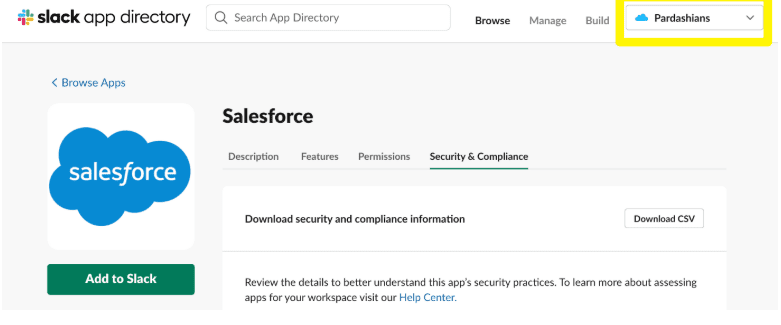
You have to install the Salesforce App directly from the Slack App directory. Make sure you have the appropriate workspace chosen in the workspace dropdown at the top of the screen.
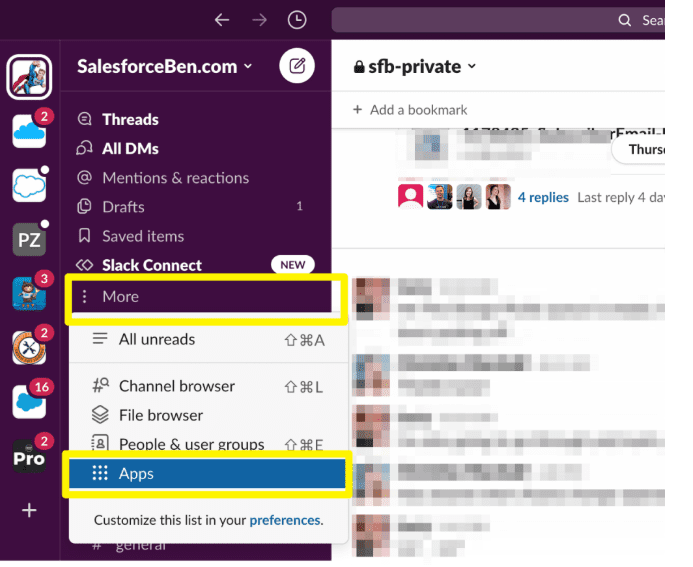
On the other hand, you can click on ‘Apps’ in the left sidebar or click ‘more’ to get access to the Slack App Directory.
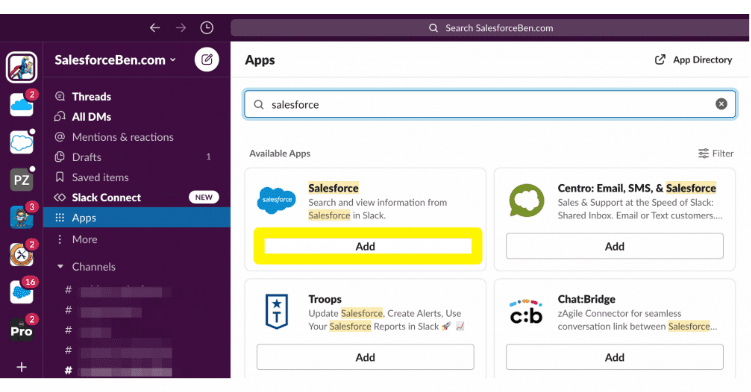
Also, you will need to approve how Slack can use the Salesforce data.
2. Select the Integration Method
The first step is to choose the integration method. There are two paths of integration:
-
Guided setup
This is recommended for beginners. The guided setup includes the entire process- from connecting the workspace to configuring record pages. This is the quickest and easiest route for beginners.
-
Manual installation
Manual installation offers more control over the feature set and configuration. Select this if you have particular customisation requirements or want to understand the components.
3. Connect the Slack Workspace to Salesforce
This step needs collaboration between the Slack admin and the Salesforce admin. The vital roles of a Slack admin are:
- Click the Workspace name in the top left.
- Visit the tool & settings and then manage Salesforce organisations.
- Click on Connect Salesforce org.
- Enter the Salesforce org URL.
- Click Submit Request.
This establishes the pending connection request, which must be approved in Salesforce.
4. Approve the Connection in Salesforce
This step integrates systems securely and enables seamless data flow and ensures effective and trustworthy communication across platforms.
For this step, start the setup in Salesforce and use the quick find box to search for Slack. After that, click on Manage Slack Connection, where you will witness any pending connection requests from the Slack workspace. Open the request section and take time to review the connection details and select how you would like to map the users, via Email or SAML NameID. Once everything is alright, click on approve.
Finally, switch to Slack. Return to managing your Salesforce organisation, find the newly approved connection and click on activate. Now your Salesforce and Slack workspaces are successfully connected and ready to work.
5. Assign User Permission
In Salesforce, begin by navigating the setup and leveraging the quick find box to search for the permission sets. From this list, find and select the Slack standard user, which is particularly designed to allow user access to Slack-related features.
Once the permission is set, click on the manage assignments to review current users and control access. Then click on add assignments, where you can search for the users who require enabled Slack integration. Choose the appropriate users, review the selection and click assign to allow the required permission. This will ensure seamless access and use of Slack within Salesforce.
6. Add Slack Components to Record Pages
To add Slack components to record pages for enabling real-time collaboration, streamline communication and enhance conversations in your workflow.
To include Slack components in the record pages, head to setup, use the Quick Find box and open the Lightning App Builder. Choose the record page you want to boost, such as case, account or opportunity, and then click edit.
From the component palette, situated on the left, discover the Slack component and drag and drop it onto your page layout where it looks good. Once it is placed, configure the component settings based on the team’s requirements, then click on save and activate.
To enable Slack channels to record, go to setup and search for Slack channels for records. From there, select the objects you want to back up to Slack channels and save the configuration. Once the setup is done, users will witness a dedicated Slack section on the record pages, which allows them to set up new channels or open previous ones linked with specific records for easy collaboration.
7. Set up Custom Alert
A system admin can configure to expand the default alerts in the package. After creation, members of the Slack workspace or Salesforce org can choose to subscribe to the custom alerts. For this, the member needs to select a name and choose the object type from the drop-down menu.
After choosing the object level or record level, click on next and then choose a field, an operator and a value to set the alert criteria. Then save and finish, and continue to go to the next step.
8. Test Everything
Before introducing it to your entire organisation, validate the working of the Salesforce integration. The testing checklist will include:
- Connection status
- User access
- Record sharing
- Alerts & automation
- User mapping
- Roll out strategy
9. Extend and Drive Adoption
Once the testing is done, you need to start with a small team and offer role-based training. This will help you to expand gradually across various departments.
Top Salesforce Slack Integration Challenges
The Salesforce Slack integration provides quick collaborations and smarter decision-making. But several organisations find that simply connecting these two platforms does not deliver results automatically. Let’s discuss the common challenges of these integrations.
-
Overloaded information in Slack channels
One of the most vital complaints after the integration is the huge number of notifications. Every update, changes in fields or system alerts overload Slack channels; therefore, it becomes difficult to identify important notifications.
-
Low user adoption
Though there is a strong integration, teams often pull back to old habits of email check, CRM checking manually and side conversations.
-
Data security risks
Salesforce includes intuitive customer and revenue information. Without appropriate controls, Slack can reveal information to other users.
-
Over-automation without manual context
Automation is strong and significant, but excess automation reduces vital human judgment, especially in sales and customer support.
-
Bottom Line
Salesforce Slack integration transforms your team’s collaboration with customer data. By introducing CRM insights directly into the communication section, you minimise context switching, enhance decision-making and ensure vital information will not get lost in the email.
The setup process is not so complex: install the package, connect to the workspace, assign permissions, configure components and develop automations.
Are you ready to update your workflows and develop team collaboration?
Begin by discovering an important process, such as lead updates or increasing support and integrate it with Slack. Analyse it among the small team, refine the workflows, and scale from there.
With this appropriate approach to implementation and a focus on quick user adoption, the Salesforce Slack integration will become a vital part of the daily workflow of your teams.
FAQs
Q1. Is this integration free?
Ans. The integration is included with the Salesforce and Slack subscription. However, certain advanced features may need particular license tiers. You need to check with vendors for particular plan details.
Q2. How long will it take to set up the integration?
Ans. The basic setup is 1-2 hours. Full deployment with testing, automations and user training will require 1-2 weeks.
Q3. Can I integrate several Salesforce orgs with a single Slack workspace?
Ans. Yes, you can integrate multiple Salesforce instances with Slack workspaces if you have separate sandbox, staging and production environments.
Q4. How can I improve the adoption of Slack Salesforce integration?
Ans. By implementing salesforce actions in Slack, providing role-based training and planning workflows which match team processes.
Q5. What are the most common uses of this integration?
Ans. The most common use cases include real-time sales pipeline updates, increased customer support cases and approval workflows for managers.
Q6. How does Salesforce Slack integration improve business?
Ans. Business will explain clear use cases, embed structured workflows, manage securities and continuously optimise the integration for improved ROI.

Director / CEO
Vishal Aggarwal is the Director/CEO at CRM Masters Infotech, with over 22 years of experience driving business growth through strategic ERP and CRM solutions. Specializing in Zoho and Salesforce, he helps businesses automate sales processes, improve efficiency, and achieve scalable growth with customer-focused, data-driven strategies. His expertise serves clients across industries such as manufacturing, retail, finance, real estate, and education, empowering organizations to optimize operations and maximize ROI.